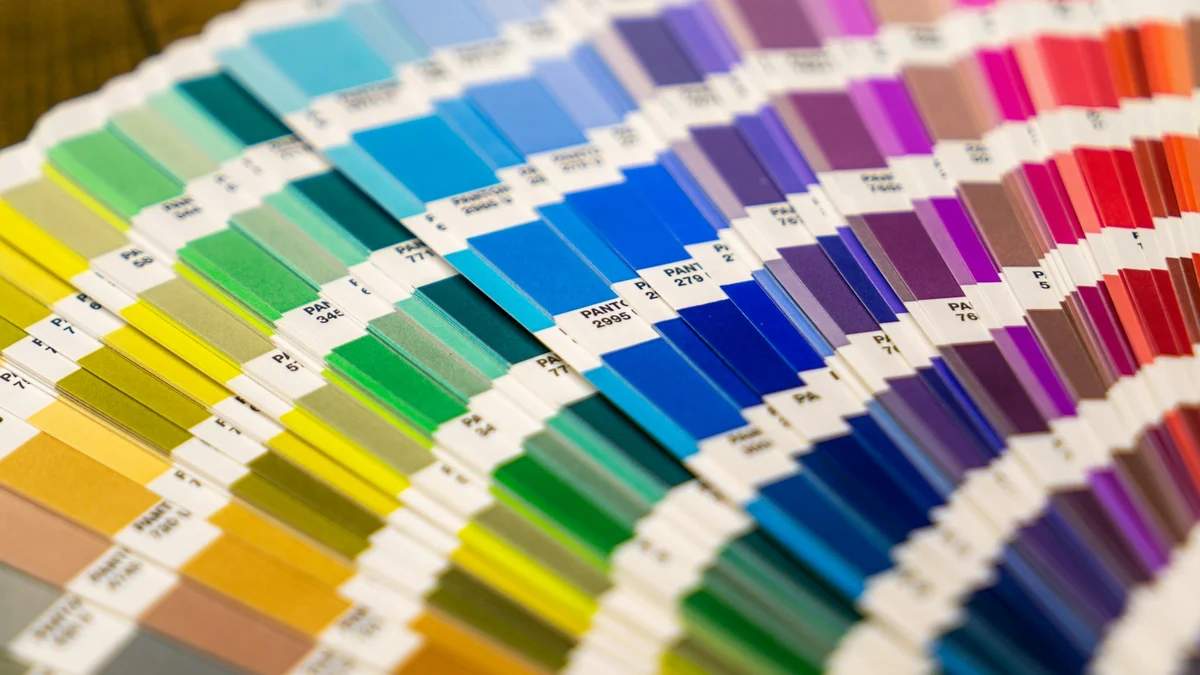
Build a photo color palette without confusing dominant and accent colors
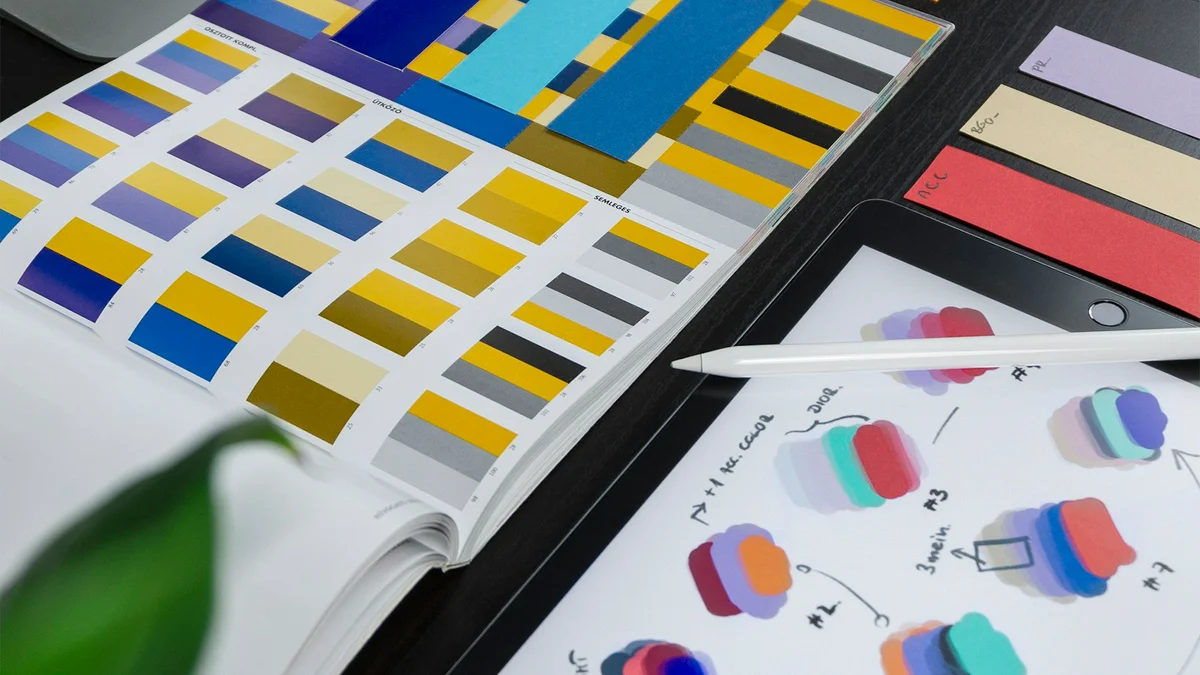
Turn extracted photo colors into useful background, text and accent roles. Understand five-color sampling limits, transparent pixels and a reviewable palette handoff.
Interactive controls could not load. Reload this page to try again; the content and guides below are still available.
Reload pageKitNelo Blog
Practical help with upload size limits, image formats, conversion and photo metadata. Choose an image workflow that fits your task.
Published by the KitNelo site maintainers. How we source, check and correct articles
You can browse the articles below while search loads.
Read a guide below when you need background information, or open a tool to process your files. Keep the original, inspect one export, then apply the settings to a batch.
Continue with the articles below for format selection, HEIC conversion, upload limits and photo privacy.
Turn extracted photo colors into useful background, text and accent roles. Understand five-color sampling limits, transparent pixels and a reviewable palette handoff.
Compare presets on the same photograph, review neutral colors and shadows, and check the actual 1000px JPEG export limit before using a filtered image online.
Export nine 1080px PNG tiles, understand the centered square crop and reconstruct the image before posting. A worked 3600×2400 example explains tile order and resolution limits.
Rename two same-named images with a batch index and output dimensions. Check the real ZIP members, picture identity, count and pixel size before handing them over.
Build product and application images, remove similar variants deliberately, check SVG exports and test printed QR or barcode outputs.
Use a 320×180 practice image to distinguish horizontal mirroring from 90-degree rotation. Check readable text, asymmetric details, dimensions and the real export.
Create local camera-motion GIFs in KitNelo. Choose dimensions, duration, frame rate and colors, then inspect the actual download for animation, cropping and loop seams.
Inspect size, transparency and sampled white corners with KitNelo. Use a fictional gray-center example to understand sampling limits, compare exported JPGs and review the asset manifest before submission.
Read image HEX colors while separating solid pixels, antialiased edges and transparency. Use a two-color PNG example to check sampling location, format and the limits of RGB-only results.
Use a copyable SVG sample to check PNG export dimensions. Separate width and height from viewBox, diagnose clipping, and verify the downloaded image at its intended display size.
Separate file copying from JPEG re-encoding. Keep an original, an editable master and delivery copies, then inspect text, edges, dimensions and the uploaded result.
A 300 DPI label does not create missing detail. Calculate print dimensions from pixels and PPI, then check resizing, aspect ratio and the actual print preview.
Distinguish a complete image Data URL from a raw Base64 payload, copy the expected form and check decoding, truncation and privacy before submitting it.
Prepare screenshot order, overlapping text and widths before vertical stitching. Check every seam in the exported PNG and understand local processing, centered images and long-canvas limits.
Check a background-removal sample on light, dark and destination backgrounds. Preserve the subject, export a real transparent PNG, and recognize when complex edges need detailed editing.
Add text or logo watermarks in the browser, then check placement, opacity and readability at the intended display size. Keep originals and inspect batch exports before sharing.
Separate file size, pixel dimensions and composition. Choose cropping or resizing, check the downloaded output and avoid stretching or a later compression step changing exact dimensions.
Compress an image for a 200 KB upload limit. Download the 1200 × 800 source and tested 199,576-byte JPG, then check its dimensions and legibility.
Find the corresponding tool and start your task.