
The practical answer
In Batch Spreadsheet Merge & Split, select the worksheets you actually need, review output column names and retain sources. Generate a preview, check counts, blanks and identifiers, then download XLSX or CSV. Appending records and joining tables by a business key are different tasks.
Select sheets and field meanings before column positions
Use headers in the first row and the same kind of business record in each data row. Select only intended worksheets; avoid including notes, subtotal pages or historical archives accidentally. Repair import failures first, or explicitly confirm the scope when proceeding with successful sources only.
Check header meaning rather than column position. Microsoft’s Power Query append documentation also describes appending by column names. It provides background for this alignment method; this tool does not execute or save Power Query queries.
| Source header | Output header | Reason |
|---|---|---|
| Name / Employee | Name | Unify only when both mean employee name |
| Department / Team | Department | Check whether the business definitions match |
| Notes | Notes or blank | Keep notes or explicitly exclude the column |
Check the preview rather than a success message alone
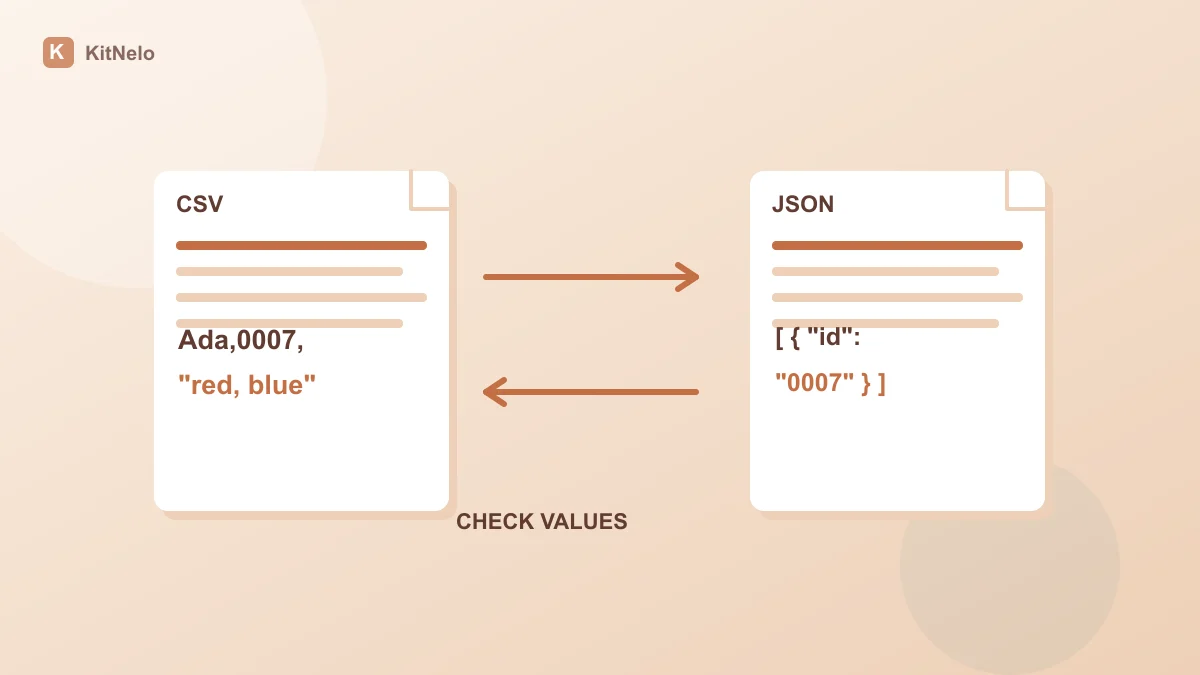
CSV quotes and embedded line breaks affect record parsing. Use the CSV and JSON conversion checks to repair structural input problems before merging.
- Import XLSX, UTF-8 CSV or TSV, select worksheets and review row counts for each.
- Rename output columns to align synonyms. A blank output name excludes that column; similar labels do not automatically confirm meaning.
- Retain source columns and generate a preview without deduplication first. Enable deduplication only after choosing business keys, and inspect records with blank keys.
- Sample identifiers, dates, amounts and blank columns across sources. Correct mappings and regenerate if values align incorrectly.
Choose output for the intended handoff
XLSX exports store cell values as text, which helps preserve leading-zero identifiers. CSV retains characters too, but Excel may infer numeric types when you open it directly; import identifiers as text. Exports do not preserve original workbook formatting, pictures, macros or formulas. Formula cells need saved calculated values in the source.
A batch allows up to 30 files and 50 MB total, with 10 MB per file, 50,000 rows, 200 columns and one million cells. Field-based splitting supports up to 200 groups as a CSV ZIP. Inputs and the preview belong to the current page session: download or explicitly save the result.
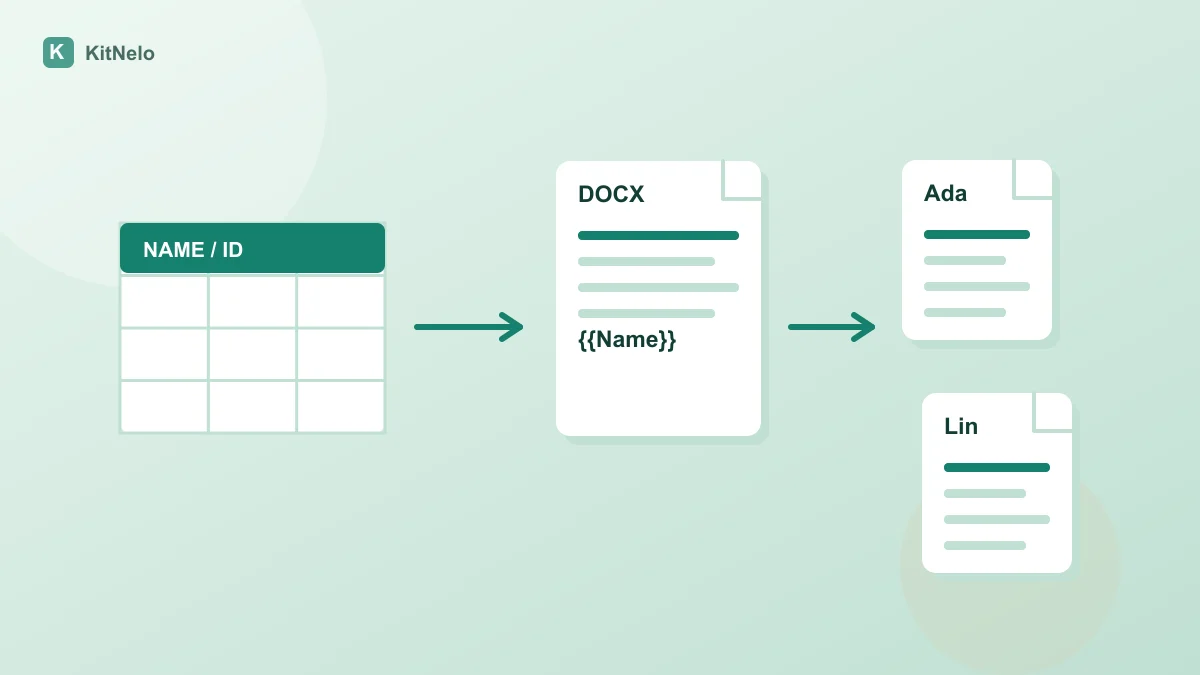
To turn the merged table into notices or certificates, follow the Excel-to-Word template workflow and check mappings again. Source columns help trace a wrong document value back to its original record.
Common questions
Can files with different column orders be combined?
Yes, align confirmed output column names rather than positions. You still need to check their business meanings.
Are duplicate rows removed by default?
No. Records are retained unless you choose deduplication fields. Records with blank key values remain for review.
Are Excel formulas and formatting retained?
No. Exports contain cell values; formulas need saved calculated results in the input. Original formatting, images and macros are not retained.
Further reading & sources
Put the guide into practice
Open the relevant tool, preview the result and check your exported file.