The practical answer
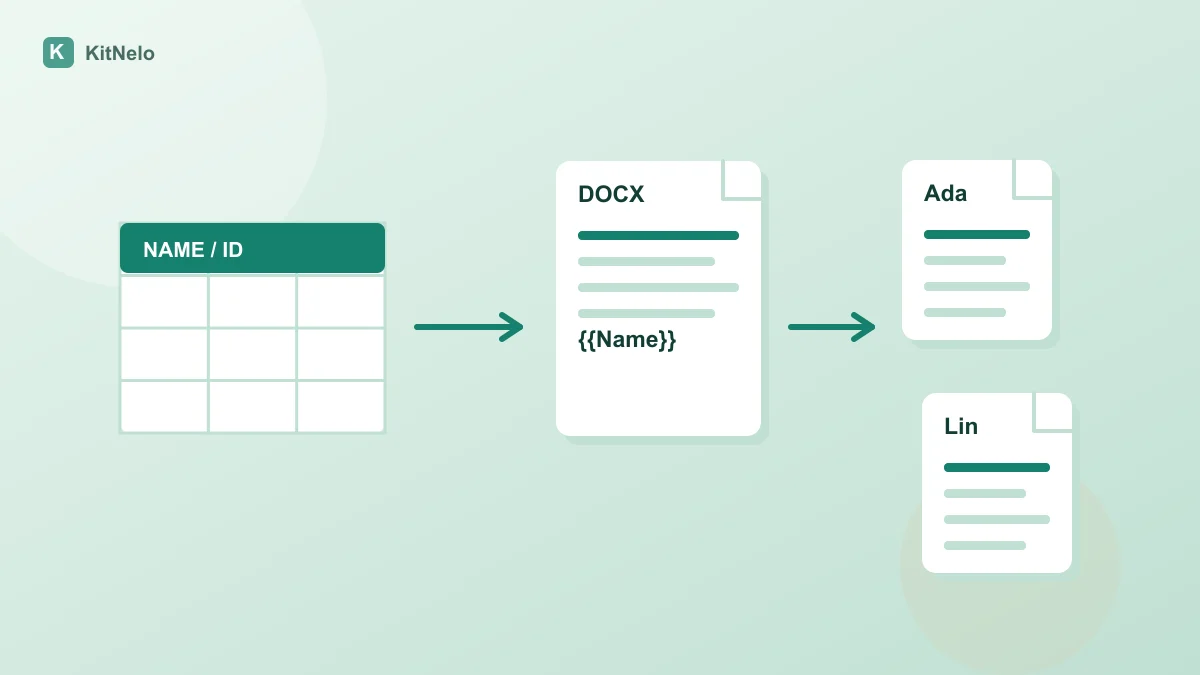
Write ordinary placeholders such as {{Name}} in your DOCX. Import Excel or CSV in Word Template Batch Fill, confirm mappings and blank-value handling, and inspect one downloaded document in Word before generating the batch. This tool exports DOCX and ZIP; it does not send mail or create PDFs.
Prepare the template and data first
Save a standard DOCX and keep each placeholder within one paragraph. Ordinary double-brace text in the body, tables, headers and footers is supported. Variables inside merge fields, text boxes, revisions or content controls need template cleanup.
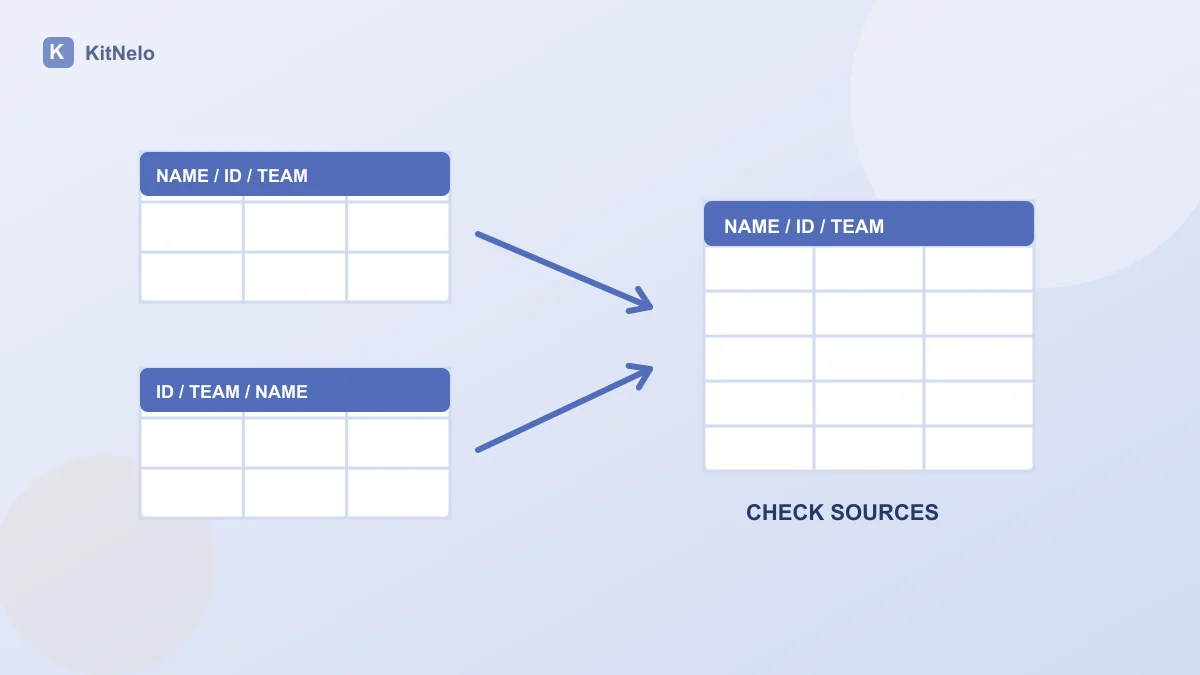
Use one row per document and clear column names in the first row. Store identifiers such as 0007 as text in Excel. Prepare dates in the exact form you want to print. If lists arrive from different departments, start with the column-name spreadsheet merge guide.
Microsoft’s WordprocessingML structure documentation explains paragraphs and text runs within DOCX. It helps explain why a visually continuous placeholder still needs checking; the tool’s template validation defines its supported cases.
| Template placeholder | Data column | Check |
|---|---|---|
| {{Name}} | Name | Spelling, blanks and the intended person |
| {{ID}} | ID | Keep 0007 as text |
| {{Date}} | Date | Use the confirmed display form |
Confirm fields rather than accepting blanks silently
- Upload DOCX and XLSX, CSV, TSV or JSON data. Choose the intended worksheet explicitly, or start with the fictional sample.
- Check the source column for every placeholder. Similar labels do not confirm business meaning: an identifier must not map to a name.
- Correct missing values or explicitly allow blank output. Review a particular record’s name, identifier, date and amount.
- Download one DOCX and open it in Word or a compatible app. Inspect long text, tables, headers, footers and pagination. A browser text preview cannot replace that check.
Review batch outputs and processing limits
After the single-document check, generate the batch and download the ZIP with its record manifest. Check counts and filenames, then sample records with long names, blank fields or lengthy descriptions. Regenerate after changing the template or data.
The template limit is 10 MB, or 50 MB after decompression. A batch supports up to 200 records, 200 documents and 100 MB of actual output. Split larger data sets before processing. Work happens in this browser; downloading and saving to the local result library are separate actions.
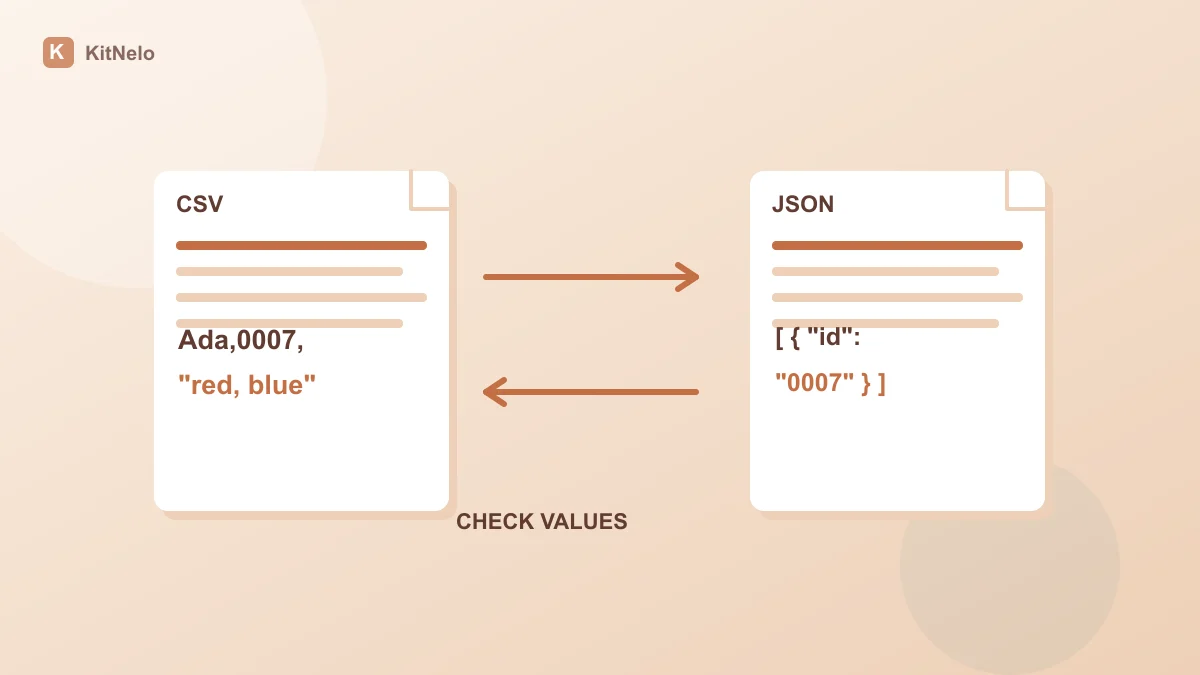
If your data starts as JSON, read the CSV and JSON conversion checks to confirm one record per row and string identifiers before mapping it into a template.
Common questions
Do I need Word mail merge fields?
No. This tool uses ordinary {{Field}} text and does not execute Word mail merge fields.
Will template pictures and tables remain?
Supported text variables are replaced while other package content is retained where supported. Open one downloaded file in your actual office app to verify layout.
Can it create PDFs or send email?
This entry exports editable DOCX and ZIP, without pagination rendering, PDF conversion or automatic sending.
Further reading & sources
Put the guide into practice
Open the relevant tool, preview the result and check your exported file.