Key Takeaways
Enter the original network name and password in the Wi-Fi form. Let the generator escape the fields, inspect the encoded text and decode the downloaded image. Confirm the network and connection separately on the target phone.
- Enter Studio;Guest in the form and look for Studio\;Guest in the encoded text.Read the supporting section: Use a network name containing a semicolon
- Image decoding verifies the payload; check the actual connection on the intended phone.Read the supporting section: Check generation, the downloaded image and the phone
In this article
Use a network name containing a semicolon
The ZXing Wi-Fi format notes describe fields for the name, authentication, password and hidden-network flag. Our teaching example uses SSID Studio;Guest, password Demo:pass123, WPA authentication and a visible network. These values describe no real access point.
Open the QR tool, choose Wi-Fi and enter the raw values. Let the form perform escaping. Adding a backslash yourself before entering the SSID can introduce an unintended character.
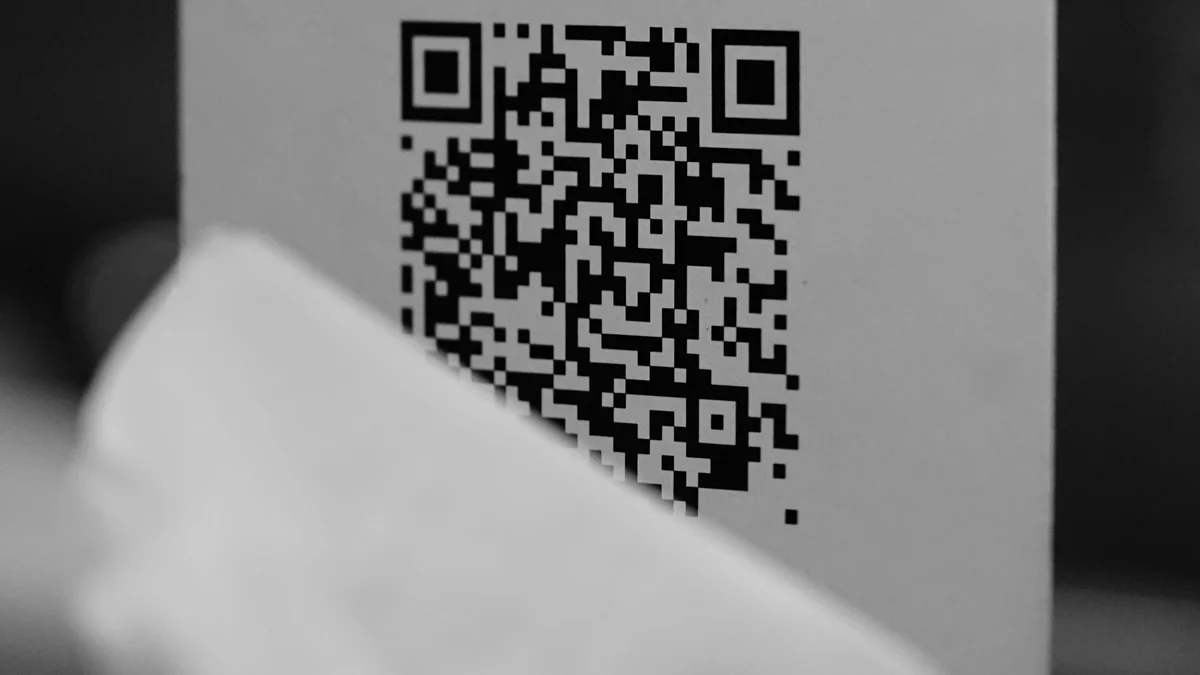
WIFI:T:WPA;S:Studio\;Guest;P:Demo\:pass123;H:false;;Check generation, the downloaded image and the phone
A correct image can still lead to a failed join if the password changed or the access point applies additional restrictions. Ask the network maintainer to confirm the configuration. For a printed card, follow the quiet-zone and print check.
- After generating, inspect S, P, T and H in Encoded content. H:false matches this exercise’s visible-network setting.
- Check the generator’s automatic PNG read-back status, then download the plain PNG. Use the intended phone or an app that reads QR images to verify the final downloaded file. Recheck after editing or adding a logo; automatic read-back covers the image generated in this run.
- For a real handoff, use an authorized guest network. Scan on the intended phone, read the network name before joining, and record the recognition and connection results.
Locate the failing step
If the phone displays only Studio, inspect the escaping before the semicolon. If the full name appears but joining fails, check credentials and authentication. If recognition itself fails, try the original PNG at a readable size with ordinary contrast.
A real acceptance note can record matching decoded text, the displayed SSID and a successful connection to an agreed test page. The fictional values only support generation and read-back practice. Keep the final image with the publication-pack checks.
A Wi-Fi QR contains the network name and credentials. Share it with people authorized to use that guest network.
Further reading & sources
Put the guide into practice
Open the relevant tool, preview the result and check your exported file.