Key Takeaways
Record the cable’s power, data-rate and video specifications separately. Compare cables with the same computer, port, peripheral and file, then inspect the copied result. Use charging behavior to assess the power part of that setup.
- Power and data rate are separate specifications; the USB-C plug shape alone does not establish either.Read the supporting section: Record three confirmed specifications
- Hold the computer, port, peripheral and file fixed, changing one factor at a time.Read the supporting section: Compare the same known file
In this article
Record three confirmed specifications
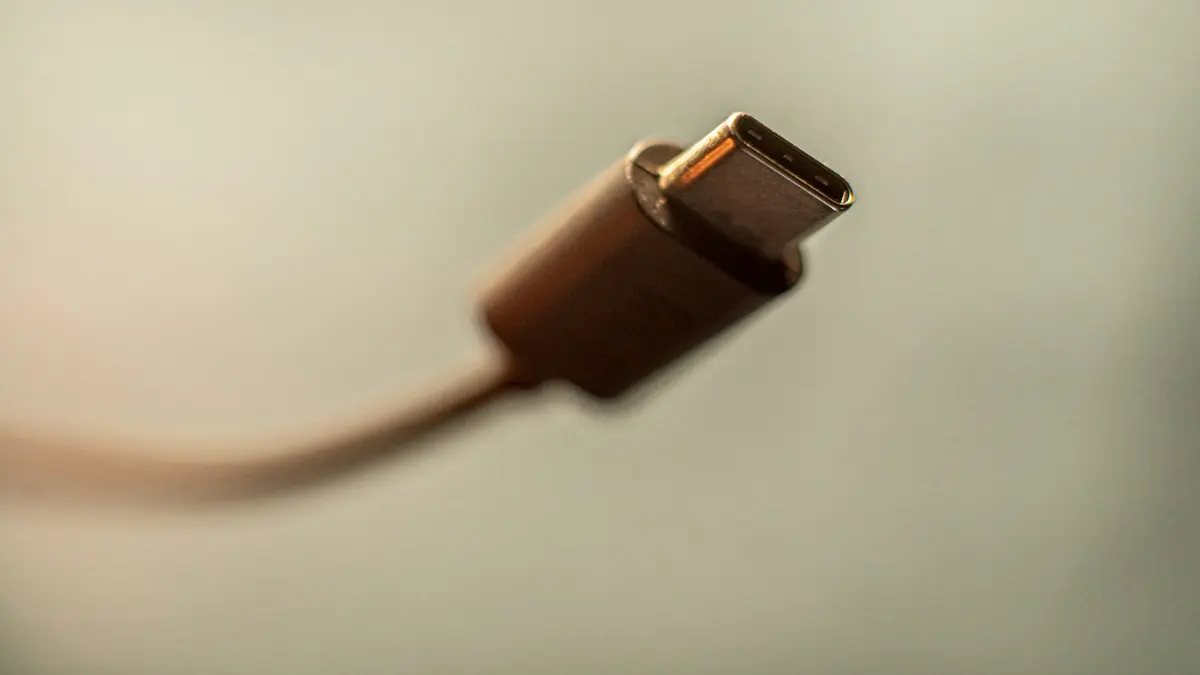
USB-IF’s product guidance explains that a USB 2.0 Type-C cable can support power delivery with USB 2.0 data capability. Record power, data rate and video support from the product documentation. Mark unavailable items as unknown.
The USB-IF cable logo guide describes power markings and combined power/performance markings. A wattage label calls for a separate check of the data specification. Match the exact product model to its official information.
| Item | Cable A | Cable B |
|---|---|---|
| Power specification | 60 W | 60 W |
| Data specification | USB 2.0, up to 480 Mbps | Up to 5 Gbps |
| Video specification | Check separately | Check separately |
Compare the same known file
Keep the result with the file manifest and checksum workflow. Interpret the measured copy speed in the context of the entire connection.
- Use the same computer port, peripheral and source file. Record any dock in the path and check the port and peripheral specifications.
- Copy the file with cable A and record bytes and elapsed time. Switch to cable B and repeat. File size, storage speed and background work affect timing, so limit the observation to the recorded setup.
- Open the copied file and compare it with the manifest. Verify a checksum when the task requires an exact content comparison.
Check the video path when a display stays blank
Review the computer port’s video output, the cable’s video capability, dock specifications and the display input. Use the exact model documentation to resolve an unknown item.
If the copy succeeds but the file does not open, check software support and the file itself. The extension and actual-format guide provides a separate check. Record charging, copying and display results as distinct observations for this setup.