Quick answer
Choose clear, correctly oriented images, run batch image OCR and copy or download the TXT result. This entry extracts and combines Chinese and English text; it does not promise original layout, structured tables or accurate handwriting reconstruction.
Prepare a readable source image
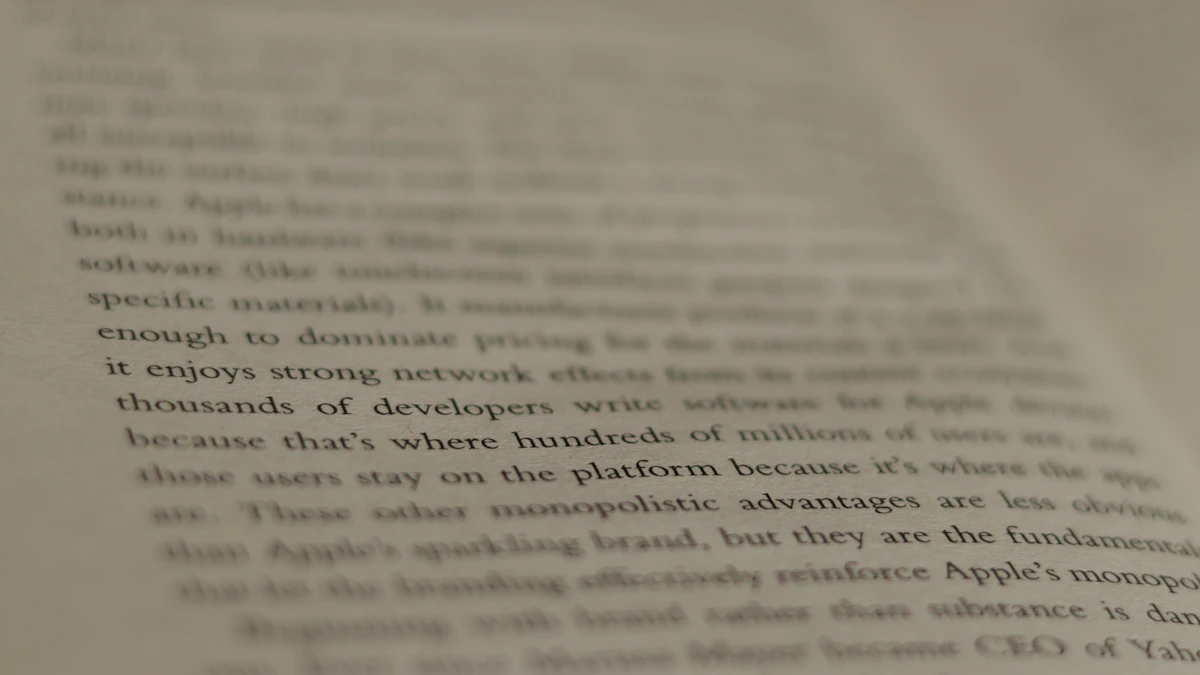
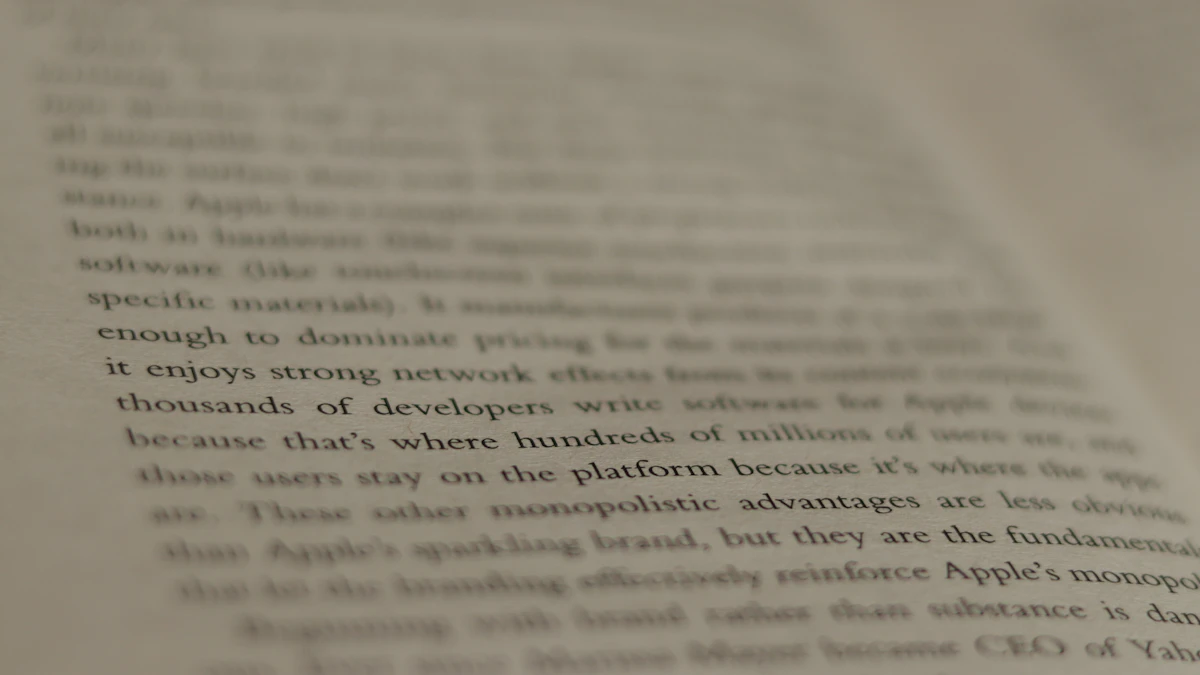
Use an original screenshot or a clear photo instead of a repeatedly compressed chat thumbnail. Keep text horizontal and complete, reduce shadows and glare, and remove unnecessary background. Avoid making letters blurry just to reduce file size.
When cropping, leave a little space around the text. Correct orientation or scan perspective if needed. Enlarging a low-resolution source cannot reliably reconstruct missing strokes.
For input resolution, skew and borders, consult Tesseract’s recognition-quality guidance. These are preparation suggestions rather than a promised accuracy rate for every image.
Recognize a batch and export text
- 1Open batch image OCR and choose one or more images. Test one first to see whether the source is suitable.
- 2Start OCR and wait for resource loading and recognition. This entry uses English and simplified Chinese language resources.
- 3Compare the result with the images. Multiple files are processed in the selected list order and separated by filenames in the combined output.
- 4Check numbers, dates, amounts, names and punctuation. Copy the text, download TXT or transfer it to a text tool for cleanup.
Recognition runs locally in your browser, but the OCR program and language resources must still load. Network failures or unavailable resources can prevent startup.
Prioritize these proofreading checks
- Lookalike characters: 0 and O, 1 and l, and similar Chinese strokes.
- Numbers and symbols: decimal points, minus signs, percentages and date separators. A fluent sentence does not prove accuracy.
- Reading order: columns, footnotes and wrapped lines may need manual arrangement.
- Tables: plain OCR text is not a structured spreadsheet. Verify which row and column each value belongs to.
Improve the input when recognition fails
For tiny text, obtaining a higher-resolution original is usually more useful than repeatedly processing the same blurry image. Retake shadowed photos. Divide skewed or complicated layouts into simpler regions when helpful.
This entry does not automatically produce a searchable PDF or recreate a Word layout. Handwriting, decorative fonts and traditional Chinese may be unreliable. Proofread important material and retain the source images for reference.
For AI-assisted study-note organization after extraction, follow the AI summary prompting and verification workflow. For delivering image materials as one file instead, use the images-to-PDF page-order checks; verify those different outputs separately.
Common questions
Can I select a PDF directly here?
This entry accepts images. Export scanned PDF pages as images first, or use a suitable scan workflow before recognizing text.
Does OCR automatically make a spreadsheet?
This output is combined text, without a guarantee of cell structure. Check rows and columns and use appropriate data tools for tables or receipts.
Why does the first run take longer?
The recognition engine and language resources need to load before processing. Timing depends on the device, image count and resource loading.
Further reading & sources
Put the guide into practice
Open the relevant tool, preview the result and check your exported file.